Build a quote in minutes
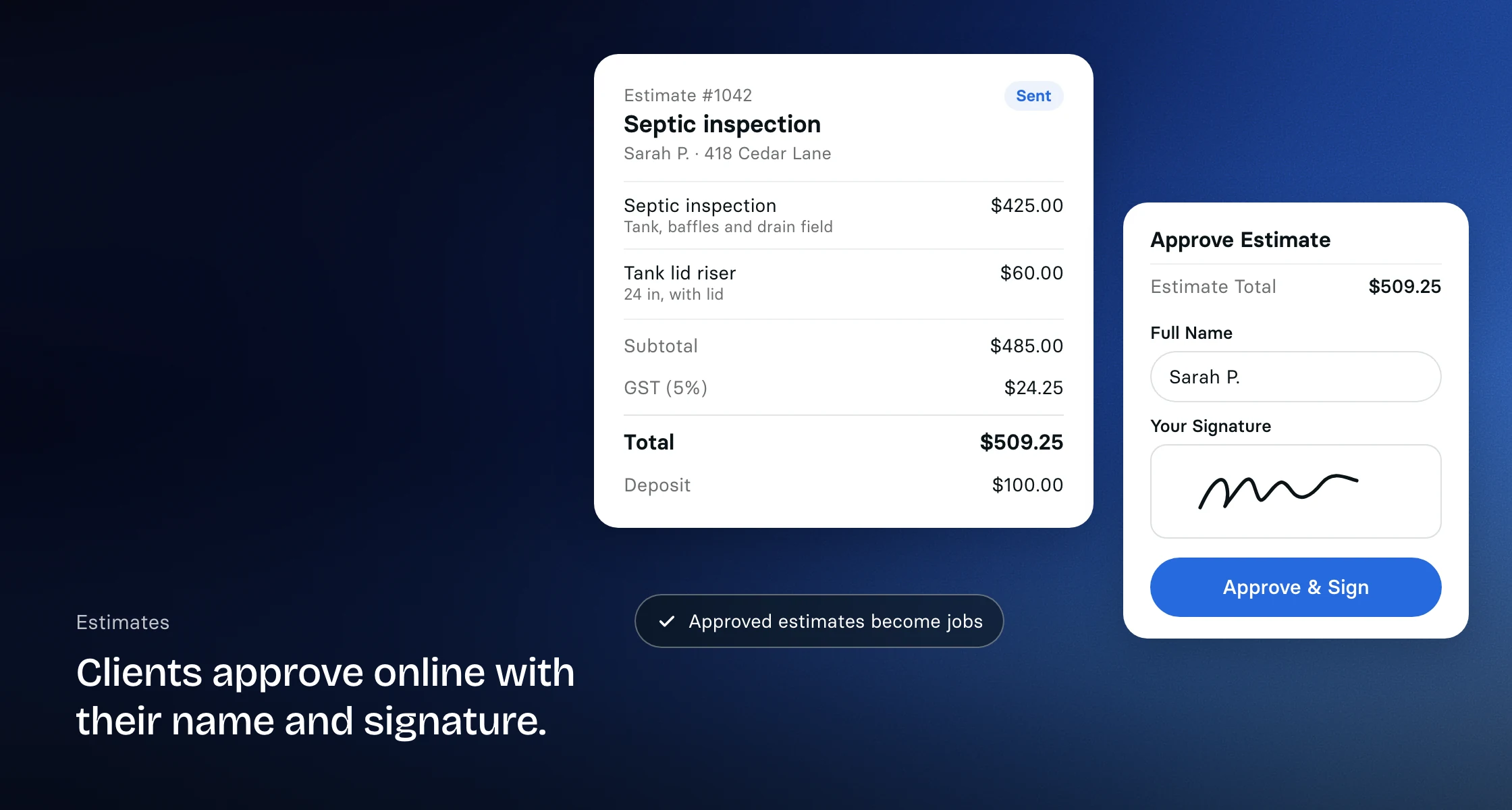
Start a quote from a request, from a client or from scratch. Add line items with quantity, unit, unit price and tax, and a description under each item that your customer sees on the quote and its PDF. Pick lines from your services list, which you fill from more than 1,500 suggested services across 41 industries with your own prices, so you are not retyping the same descriptions every week. On paid plans you can also create services of your own. Add a discount as a percentage or an amount, attach photos or documents, and Clevra numbers every quote for you. If you track costs, enter your cost on each line to see your margin; your customer never sees it.
Technicians can start a quote on site for the clients they work for, so the price is captured while the tech is still looking at the problem. The office reviews it and sends it. On Pro and Business you can also ask Claude or ChatGPT to draft a quote from line items, and it waits as a draft until you send it from Clevra.
Give customers a choice
Your customer answers from the quote itself. From the emailed link they approve it or decline it, with an optional reason. Signed in to the customer portal they can also ask for changes, and the quote shows as Changes Requested so you know to revise and resend it. Want to offer a repair and a replacement? Use Create Similar Estimate to send a second quote without starting over.
Send a link they can approve and sign
Quotes go out by email as a secure link, not a PDF buried in an attachment, with a short text alongside for customers who agreed to texts on plans with texting. The customer opens it on any device. To approve, they type their full name, can draw a signature, accept your terms and confirm with a one-time code sent to their email, and Clevra records who approved and when.
Signed-in customers also see every pending quote in the customer portal, next to their invoices and upcoming visits. Set an expiry date and customers can still approve for 7 days after it; then the quote moves to Expired, and you can send it again with a new date.

See your quotes at a glance
Switch to the board to see quotes by stage, from draft and sent to approved and lost. Clevra totals the open value, gives you a weighted forecast and your win rate, and flags quotes that have gone stale so they do not quietly die in someone's inbox. Search and filter by client, status or date when you need one quote fast.
Ask for a deposit up front
Add a deposit to a quote as an amount or a percentage of the total before tax. Your customer sees the deposit required before they approve and can approve before paying it. The deposit invoice follows approval, sent to them straight away or saved as a draft for you to send, and the job asks for the same deposit. See how payments work.
Follow up without chasing
Turn on the estimate follow-up and Clevra chases a quote that gets no answer: two days after you send it, your customer gets a reminder email with a link to approve, and on plans with texting you can switch on a text as well, for customers who agreed to texts. The email at that default timing works on every plan. On paid plans you choose the delay, add a second reminder, or set an automation rule that creates a task for your team. Follow-ups stop once the customer answers or the quote expires.
Approved quotes become jobs
When a customer approves, Clevra creates the job automatically with the same line items, discount and deposit, turns the lead into a customer and moves the deal forward on your pipeline. The new job waits in the Unscheduled list on the schedule until you drag it onto a day. See how scheduling works.
Once a quote is approved, its prices are locked, so the job and the invoice start from exactly what the customer agreed to. Approved over the phone? Use Mark as Approved. With QuickBooks Online connected on Pro or Business, turn on Sync estimates and your sent and approved quotes appear in QuickBooks too. See integrations.
Priced the way trades quote
Quote an HVAC changeout with the equipment and the labor on their own lines, a painting job room by room, a renovation with a deposit up front, or concrete scanning by the half day. Quoting is included on every plan, including the free plan.
More on how Clevra works: Scheduling, Invoicing, Payments, Crew management, CRM.