Invoice the work that is done
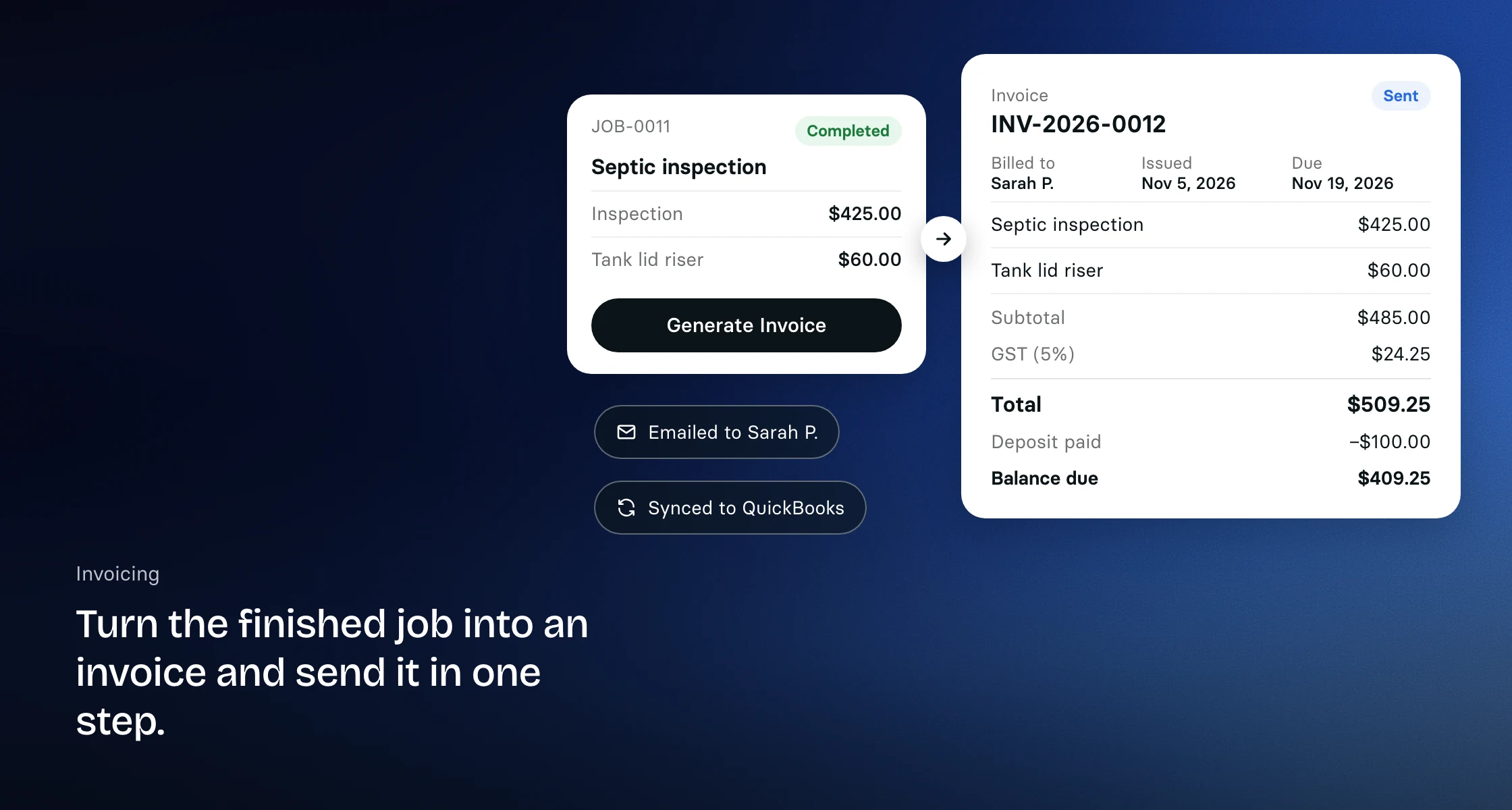
Open a job and click Generate Invoice. The invoice starts with the job's line items, its discount and its completed visits that are not billed yet. Each visit can only be billed once, so nothing gets invoiced twice and nothing falls through the cracks. Adjust line items, discounts and tax while the invoice is a draft, and Clevra numbers every invoice for you.
Deposits before the work starts
Ask for a deposit on the estimate or the job, and Clevra creates a deposit invoice for it. In Settings you choose whether it goes to the client automatically, and you can change that on each estimate or job. Once the deposit is paid, the job's invoice shows it as Deposit paid with the balance due, and a job can't be invoiced while its deposit is unpaid. Deposits are not available while QuickBooks is connected.
Bill from the visit
Your techs can create and send invoices for the jobs they work and record the payment before they leave, from Clevra in their phone's browser. In the Technician app, coming soon, they start the invoice right from a completed visit, with the job's line items, completed visits and discount already on it. Techs bill only the jobs they work.
Send a link, not an attachment
Invoices go out by email as a secure link. The customer opens a clean, branded invoice on any device and downloads the PDF if they want one. The first time they open it, the invoice is marked Viewed, so you know it landed. Online card payments from the link, through Stripe, are coming soon.
Know what is outstanding
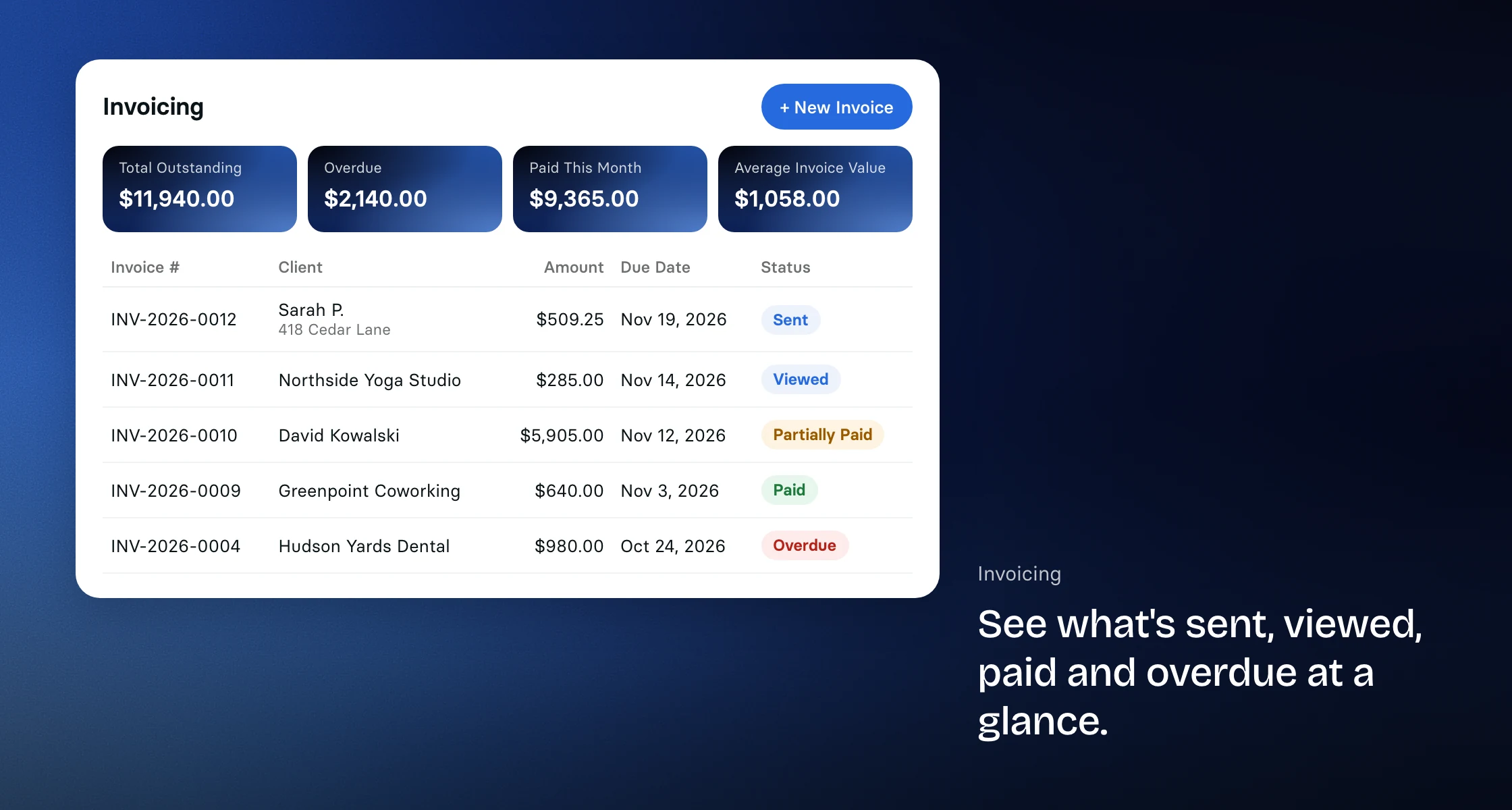
The invoicing screen shows your total outstanding, what is overdue, what was paid this month and your average invoice value. Switch between a list and a board, filter by status, client or date, and see which invoices are draft, sent, viewed, partially paid, paid or overdue. Invoices are marked overdue automatically when their due date passes.
Reminders without the awkward call
Send a payment reminder in one click from the invoice. On paid plans, turn on the Overdue Invoice Reminder automation and Clevra emails the client once an invoice is past due by the number of days you choose, so follow-up still happens in your busiest week.
Numbers that stay put
Tax is charged at the rate in effect when you invoice. If a rate changed after the client approved the estimate, the invoice form tells you before you send. Once the customer has an invoice, its amounts and tax rates are locked, and every step, from sent and viewed to paid, is written to the invoice history. If two people edit the same draft at once, Clevra stops the second save instead of quietly overwriting the first.
Invoices are in your company's currency, which follows your country. Need to cancel one? Void it, or write it off as bad debt with a reason, and your numbers stay honest.
Synced with QuickBooks
On Pro, Business and Custom plans, the invoices you send appear in QuickBooks Online automatically, and a voided invoice is voided there too. Payments follow, and a payment you record in QuickBooks against a Clevra invoice marks it paid in Clevra, so your books match the work. If something can't sync, the QuickBooks settings show the reason and the fix. See all integrations.
Get paid faster
Record cash, check, card and bank transfer payments against an invoice in seconds, and the balance updates itself. Your techs can record a payment on site from their phone. Online card payments through Stripe are coming soon. See how payments work.
Bill plumbing service calls the same day, invoice lawn care routes visit by visit, or send a general contractor one invoice for several days of concrete scanning. Invoicing is included on every plan, including the free plan.
More on how Clevra works: Scheduling, Quoting, Payments, Crew management, CRM.