Clevra app for ChatGPT
Run your field service business from ChatGPT
Ask about today's schedule, overdue invoices or a client's history in plain words. ChatGPT answers from your live Clevra data and can draft an estimate or book a visit, always as you and within your role.
On Pro, Business and Custom plans, and during a free trial. Works in ChatGPT on the web and on mobile.
See it in ChatGPT
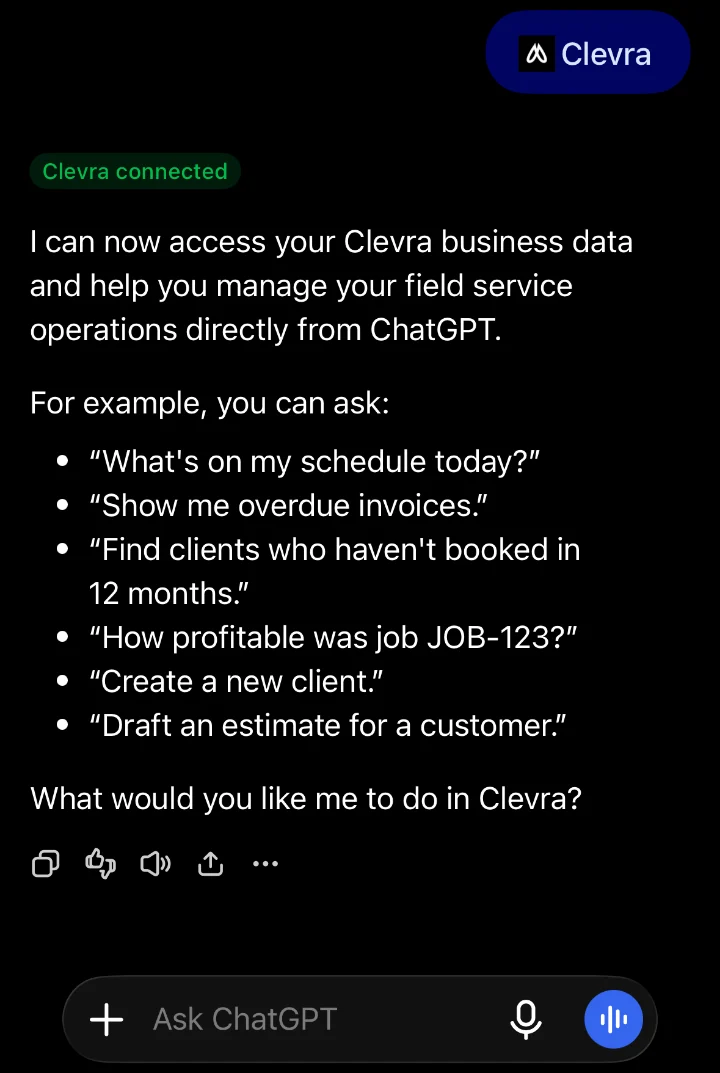
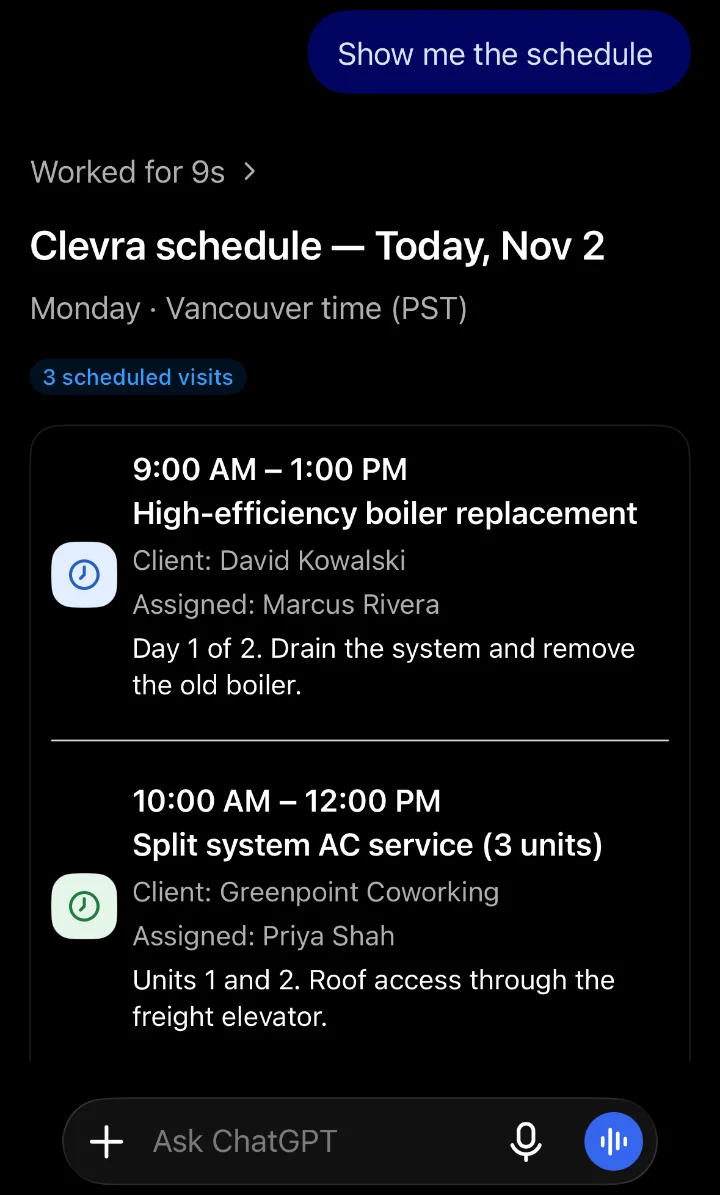
Real screens from ChatGPT on a phone, connected to a Clevra demo company.
Find Clevra in ChatGPT
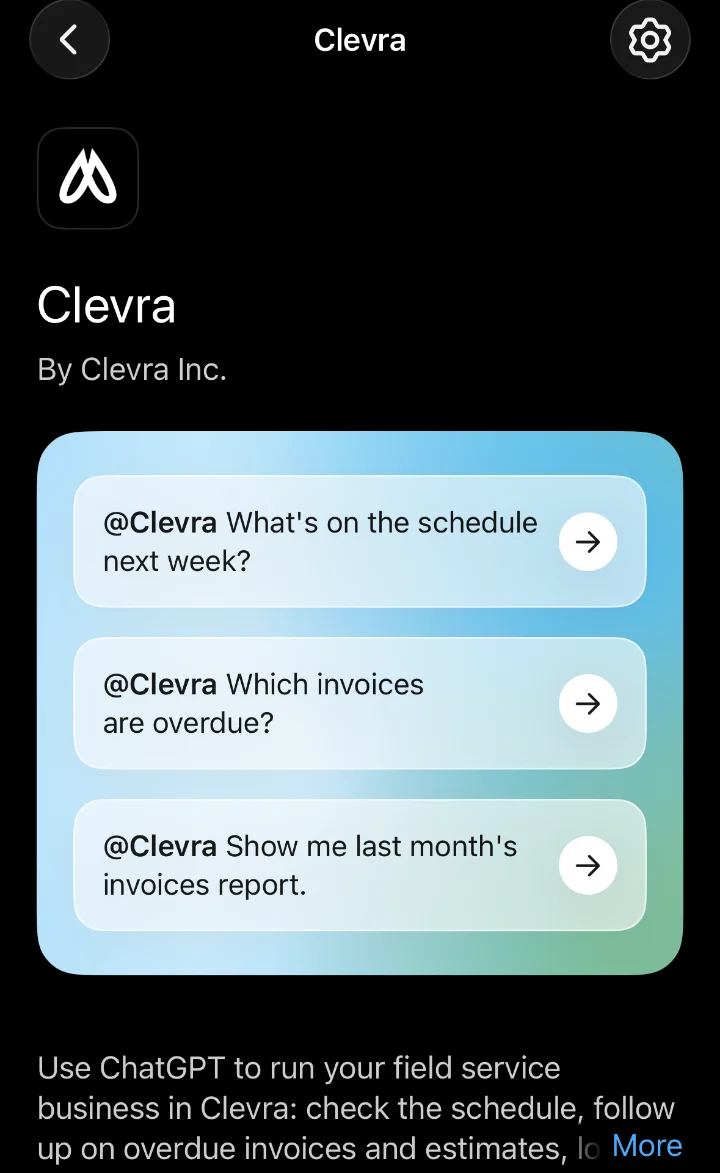
Open the Clevra app in ChatGPT and start from a suggested question, or ask your own.
Connected in one sign-in
Sign in with your Clevra login once. ChatGPT confirms the connection and shows what you can ask.
Answers from your live data
Ask for the schedule and get each visit with its time, client, technician and notes.
Try asking
Type @Clevra in any chat to bring Clevra in, then ask in plain words.
- @Clevra What's on the schedule tomorrow, and who is assigned to each visit?
- @Clevra Which invoices are overdue, and how much is outstanding in total?
- @Clevra Show me everything we've done for Acme Property Management this year.
- @Clevra Find a two-hour slot for Maria next week and book the follow-up visit for the Oak Street job.
- @Clevra Draft an estimate for Jane Smith: annual furnace service plus one filter replacement.
- @Clevra Run last month's revenue report and tell me which services grew the most.
What ChatGPT can do in Clevra
Everything runs through the same rules as the Clevra app and is recorded in Clevra's audit trail as done through ChatGPT.
Look things up
Limited to what your role can see.
- Clients, client notes and a client's billing standing
- Jobs, job statistics, and job profit where your role can see costing
- Invoices, estimates and requests
- The schedule, and open time slots for a team member
- Activities and your team list
- Every report on the Insights hub your plan includes
Take everyday actions
ChatGPT asks you to confirm before each one.
- Create a client
- Add a note to a client
- Log an activity
- Create a task
- Draft an estimateIt stays a draft until you send it from Clevra.
- Schedule a visitSends your company's automatic confirmations and reminders, exactly as booking it in Clevra does.
Never, through ChatGPT
The connector cannot do these. Do them in Clevra.
- Send emails or texts
- Take or refund payments
- Delete anything
- Convert estimates into jobs
- Import data
- Change billing, payroll, team membership or company settings
Connect Clevra to ChatGPT
It takes about a minute. You sign in with your usual Clevra login, and you can disconnect at any time.
- In ChatGPT, open Apps and search for Clevra.
- Select Connect.Adding Clevra by address instead? Use this connector address:
https://app.clevra.ai/api/mcp - Sign in with your usual Clevra login and approve access on the Clevra consent screen.
- Ask your first question.Type @Clevra in any chat to bring Clevra in.
What you need
- A Clevra account with the Org Admin, Manager or Dispatcher role.
- A Clevra plan that includes the AI assistant: Pro, Business or Custom, or an active trial.
- A ChatGPT account.
You can check your connection at any time in Clevra under Settings → Connected apps. That page also shows the connector address and exactly what ChatGPT can and cannot do.
Permissions and privacy
Your data stays under your company's control, and every admin can see and stop what is connected.
Your role, nothing more
ChatGPT sees and does only what your Clevra role allows. Pay rates and costing are hidden from roles that can't see them in the app, and a role change takes effect on ChatGPT's next request.
Clevra doesn't receive your ChatGPT conversations
Clevra sees only the requests ChatGPT makes on your behalf. For each request it keeps an access record (which connection, which capability, the outcome and how long it took), never the content. Access records are deleted after 90 days.
What ChatGPT receives is handled by OpenAI
Data returned to ChatGPT is processed under your agreement with OpenAI. See our Privacy Policy, section 5.1.
Your password stays with Clevra
You sign in through Clevra's own sign-in page, and ChatGPT receives a revocable access credential.
Controls for admins
In Clevra, under Settings → Connected apps, admins can:
- see every connection in the company, and disconnect any of them;
- turn Allow AI assistant connections off to pause every connection at once;
- turn Allow actions through AI assistants off to keep ChatGPT read-only for the whole company.
Each person can have up to five active connections. Using the connector doesn't count against your in-app AI assistant's monthly message allowance.
Disconnect or reconnect
- Disconnect: in Clevra, go to Settings → Connected apps and select Disconnect. ChatGPT's next request is refused. You can also remove Clevra in ChatGPT's settings.
- Reconnect after disconnecting: in Settings → Connected apps, select Connect, then reconnect Clevra in ChatGPT within an hour.
Troubleshooting
| What ChatGPT says | What to do |
|---|---|
| "Your role does not include the AI assistant connector" | Ask your admin to give you the Org Admin, Manager or Dispatcher role. No reconnect is needed. |
| "AI assistant connections are paused" | An admin turned off Allow AI assistant connections in Settings → Connected apps. |
| "Actions through AI assistants are paused" | An admin turned off Allow actions through AI assistants. ChatGPT can still look things up. |
| "This connection was disconnected…" | In Clevra, press Connect in Settings → Connected apps, then reconnect in ChatGPT. |
| "Connect Clevra to continue" | Sign in to Clevra from ChatGPT with your staff Clevra account. If you just pressed Connect in Clevra, press it again; each Connect request is valid for an hour. |
Questions or problems: hi@clevra.ai. Prefer a walkthrough? Book a demo.

All-in-one operations platform for trades.
You run a crew, not a tech company. Clevra handles the office stuff so you can stay on the tools.