
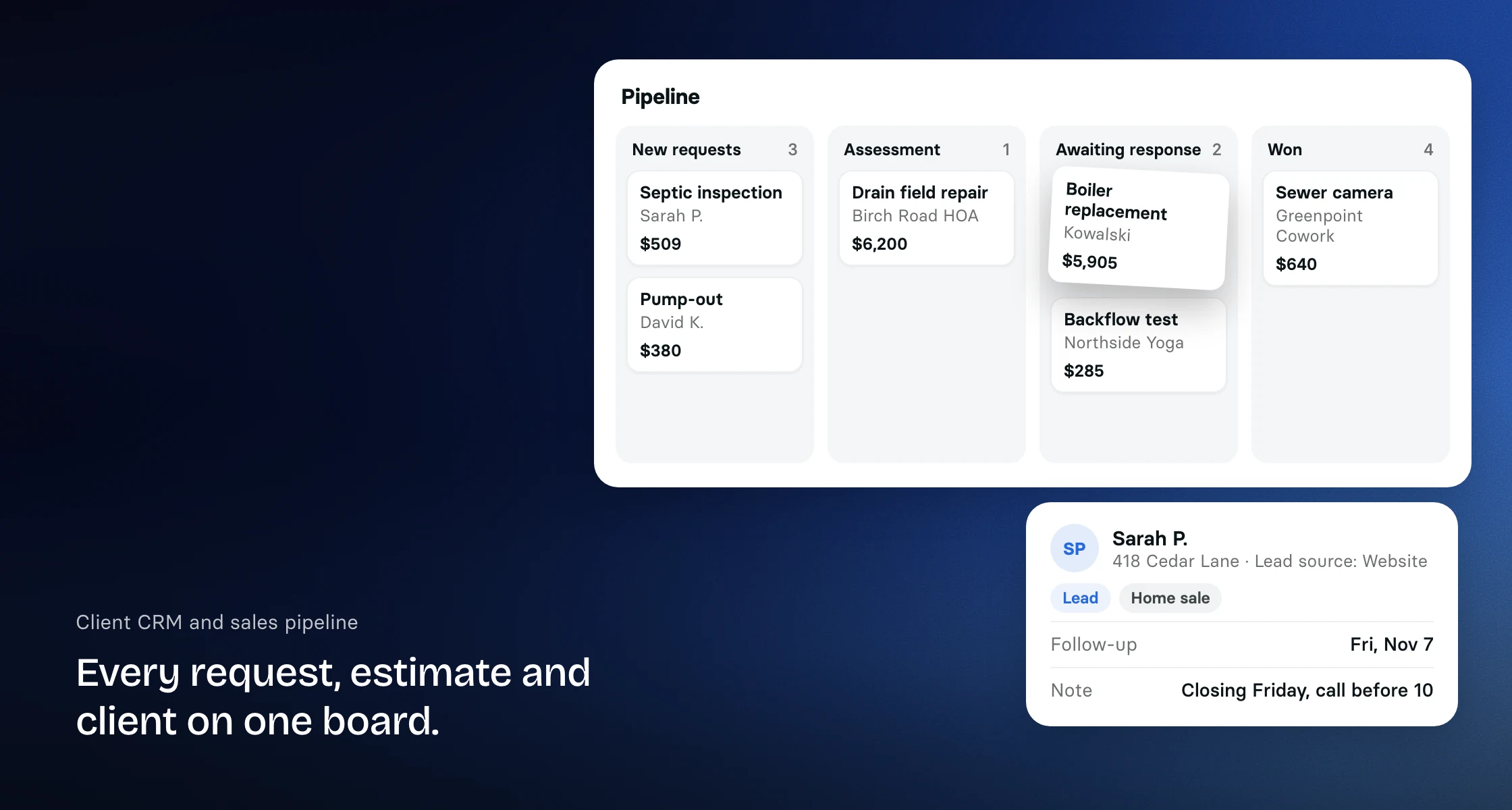
Every client in one place
The client list shows each client's status, from lead to qualified to customer, with their tags and last activity. Across the top you see new leads and new clients from the last 30 days, your total clients and how many are synced to QuickBooks. Search, filter and sort to find anyone fast.

Open a client to see their contact details, properties, tags, internal notes and files, a billing snapshot of what is owed and collected, and the full history of requests, quotes, jobs and invoices. Import clients from a CSV file and export them whenever you like.
Restoration companies can also list the units inside a property, such as 4B or 12C, and file a job's photos and documents under each unit.
A pipeline you can read at a glance
The Pipeline board lines up requests and quotes by stage, such as new requests, assessment, draft, awaiting response and changes requested, with a total for each column. Across the top you see your total pipeline, a weighted forecast, what you won in the last 30 days and your win rate. Show won or lost deals, group cards by project, or filter to deals that have gone stale. Drag a quote to Won to approve it, and Clevra creates the job.
Rename, add and reorder columns and choose which statuses each column collects. Free comes with one pipeline, Pro with up to three and Business with as many as you need, for example one for residential and one for commercial work.
Follow-ups that do not slip
Log calls and follow-ups against a client, pinned to a request, quote, job or invoice, with a due date, priority and owner. In Activities, filter them to what is overdue, due today or due this week, and open follow-ups and calls show on your dashboard's Today panel. Clevra also logs events for you, like a quote being sent or viewed and an invoice being paid, so the history writes itself.
Leads come straight in
Put a request form on your website, forward lead emails to Clevra or connect the form tool you already use, and new requests land in your Requests list with the client matched or created. Suspected spam is held for review instead of cluttering your day. Clients already in your portal can send a request with a preferred date and time.
A portal your clients will actually use
Invite a client from the Customer Portal tab on their page. They sign in without a password, using a link or code sent to their email. From the portal they approve quotes, pay invoices, see upcoming visits and completed work forms, and update their own contact details. See how the client portal works.
An AI receptionist that answers when you cannot
The AI receptionist is live. It answers calls to your Clevra number in your company's name, takes down what the caller needs and reads it back, and files the call as a request on the right client or holds it for your review, so a new lead reaches your pipeline even while you are on a job. In an emergency it puts the caller through to your emergency number, and the call's summary and transcript land on the client's Activity. The AI receptionist is an add-on for Pro and Business at $25 a month, with 30 conversations included. Book a demo to switch it on.
Tags and two-way texting
Tag clients, projects, requests, quotes, jobs and invoices to group them however you work. On Pro and Business, text clients from your own Clevra number and keep every conversation in the Messages inbox. Each client's text and email consent sits on their record, with who set it and when. See how texting works.
Track bids with general contractors in concrete scanning and construction, keep pest control and pool service clients with several properties organized, or follow up on renovation leads before they go cold. The CRM, pipeline and customer portal are included on every plan, including the free plan.
More on how Clevra works: Scheduling, Quoting, Invoicing, Payments, Crew management.