
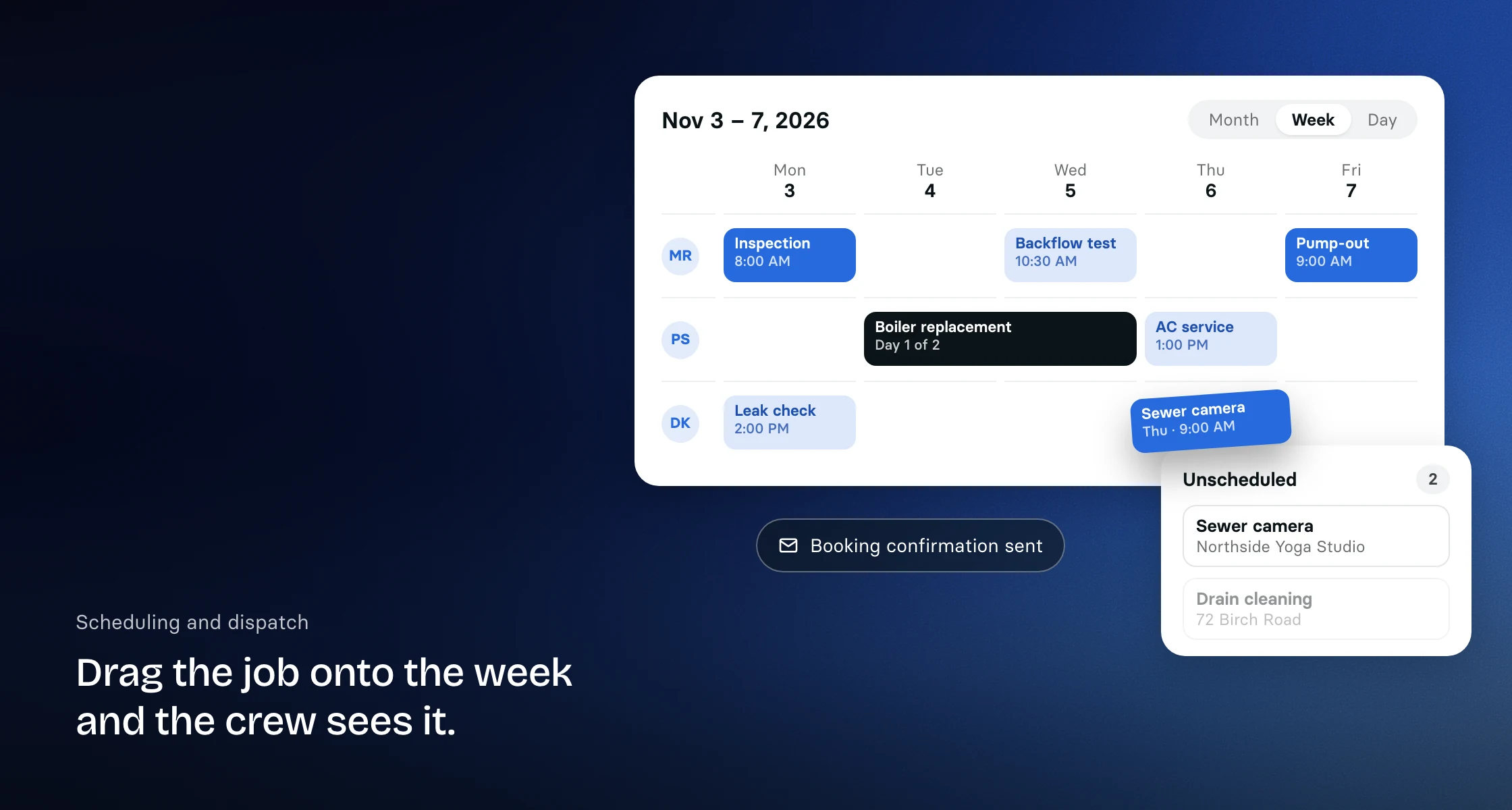
One calendar for the whole operation
Clevra's schedule shows jobs, visits, team tasks, on-site assessments and company events together. Switch between month, week and day views, and filter by type of work or by team member when you only want one tech's day. In day view each team member gets a column of their own, so you can see who still has room. Colors tell you at a glance what is in progress, due today, upcoming, done or running late.
Every scheduled appointment is a visit with its own status, assigned crew and on-site record. A job can hold one visit or many, so a two-day install or a season of maintenance stays under one job instead of scattered calendar entries. All-day events, and tasks with a date but no set time, sit in the all-day row at the top.
The schedule always runs on your company's time zone, whatever the clock on the computer you open it from. A visit booked for 9:00 AM reads 9:00 AM wherever your dispatcher sits.
Book a job in one window
Click Create and the whole job comes together in one form. Pick the client and the property, choose a one-time or ongoing job, set the visit date and time, and assign the crew. Add visit instructions for the tech, and tick one box to email the team about the assignment.
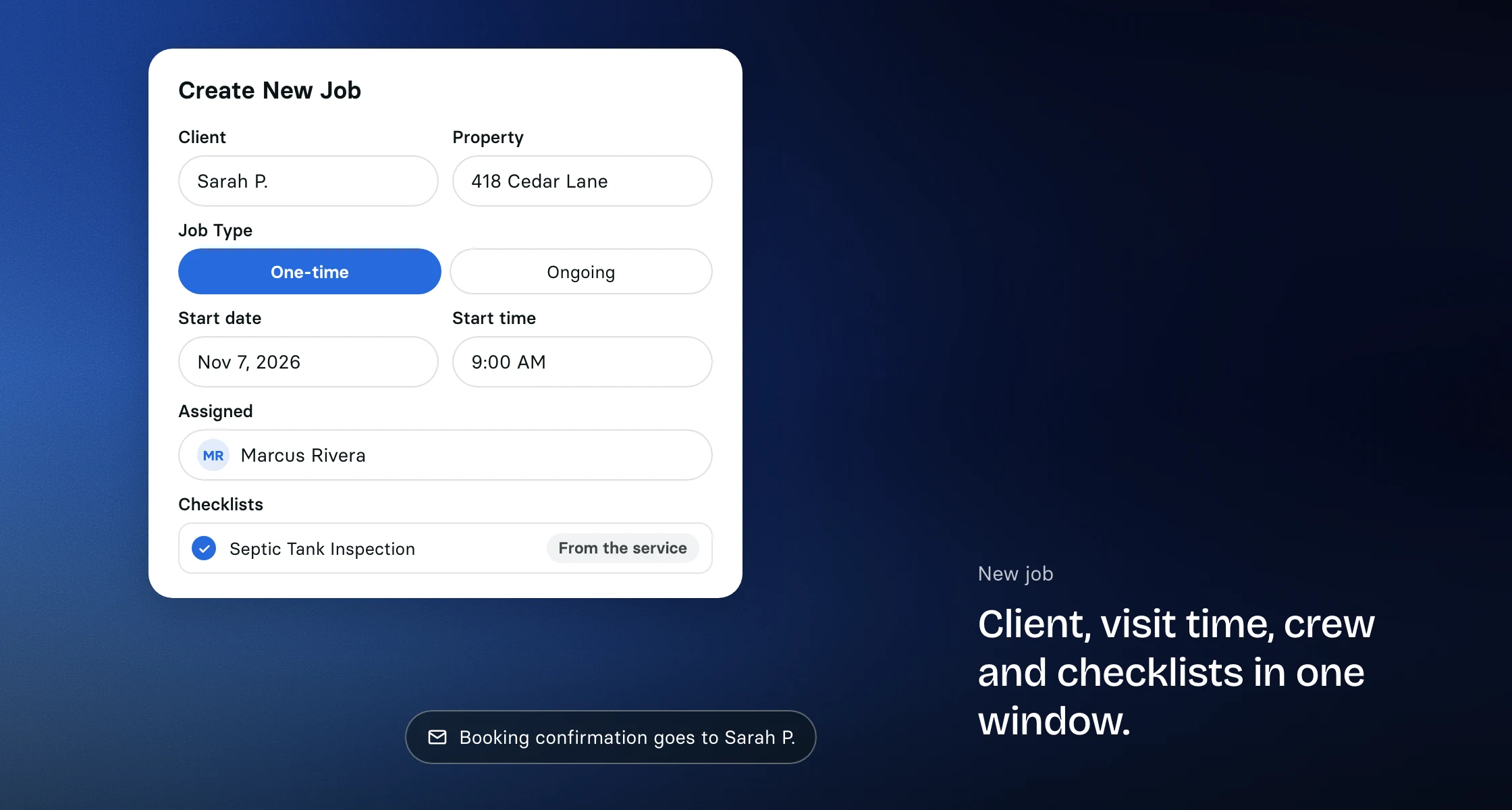
Not sure of the date yet? Tick Schedule later and the visit waits in the Unscheduled list. For flexible work, Anytime books the day without pinning an exact time.
Recurring work, set up once
Maintenance agreements, weekly lawn routes and quarterly pest treatments are ongoing jobs. Choose how the job repeats, daily, weekly, every two weeks, monthly or on a custom pattern, and Clevra creates the visits for you. The series ends after a set number of visits, up to 52, or on a date you choose. Any single visit can still be moved or reassigned on its own. See how this works for HVAC maintenance agreements, lawn care routes and pest control treatments.
Drag and drop when the day changes
A job runs long, a customer cancels, an emergency call comes in. Drag the visit to a new time or a different day and the job updates with it. When you book or move work, Clevra checks the people you assign against the jobs and calendar events they are already booked on at that time. If there is an overlap, it asks before you save, so a clash gets caught on screen instead of in the driveway.
Visits saved without a date and requests waiting for an on-site assessment sit in the Unscheduled list beside the calendar. Drag one onto a day to book it, or drag a visit back to the list to take it off the calendar. Work that is done, cancelled or already invoiced stays locked, so the record your customer paid against never shifts underneath you.
See the day on a map
The map sits next to the calendar and pins each visit at its address. Spot the job across town before you book it, keep nearby work on the same day, and book unscheduled work straight from its pin with Schedule Now.
Customers hear from you automatically
When a visit is booked, the customer gets a confirmation email. The day before, Clevra sends a reminder, and if the visit moves or is cancelled, the customer gets an email about that too, without anyone in the office picking up the phone.
On paid plans the same updates can also go out by text from your own business number, for customers who have agreed to receive texts. Text adds two more moments: an On My Way text when your tech heads out, with how long until they arrive if they give it, and a note when the visit is done. Reminders and booking texts wait for your texting hours, so nobody hears from you at 6 AM.
Each tech sees their own day
Give a team member the Technician role and they see their own schedule and assigned visits, not your company's client list or every invoice. On their phone they start and complete their visits and fill in checklists in the browser, and the Technician app for iPhone, coming soon, adds directions, On My Way and a visit timer. If a visit carries a required checklist, Clevra flags any unfinished items before the visit is closed out.
Technicians can also bill the jobs they work. From the visit they see the job's invoices, create and send an invoice, and record a payment. Reminders, voids and deposits stay with the office. For crew who should see only their own visits and time, use the Technician (limited access) role.
Anyone on the team can also subscribe to their own Clevra schedule from Google Calendar, Apple Calendar or Outlook through a private calendar link, so the day shows up next to everything else on their phone.
Book from Claude or ChatGPT
On Pro and Business, connect Clevra to Claude or ChatGPT and ask in plain words what is on the schedule tomorrow or when a tech has an open slot, then book the visit from the chat. A visit booked there sends the same confirmations as one booked in Clevra.
Built for the way trades schedule
The same calendar handles HVAC emergency calls in July, plumbing service calls, pool service routes and concrete scanning crews working across many client sites. Scheduling is included on every plan, including the free plan for solo operators.
More on how Clevra works: Quoting, Invoicing, Payments, Crew management, CRM.